

On the Subscribers page, you can check your subscribers' status and download the list of subscribers.
- How to access the Subscribers page
- How to check subscription status
- How to download the list of subscribers (CSV file)
- Other features
How to access the Subscribers page
1. On the group page, click "Subscription" at the top.

2. Click "Subscribers".

3. The list of subscribers is displayed.
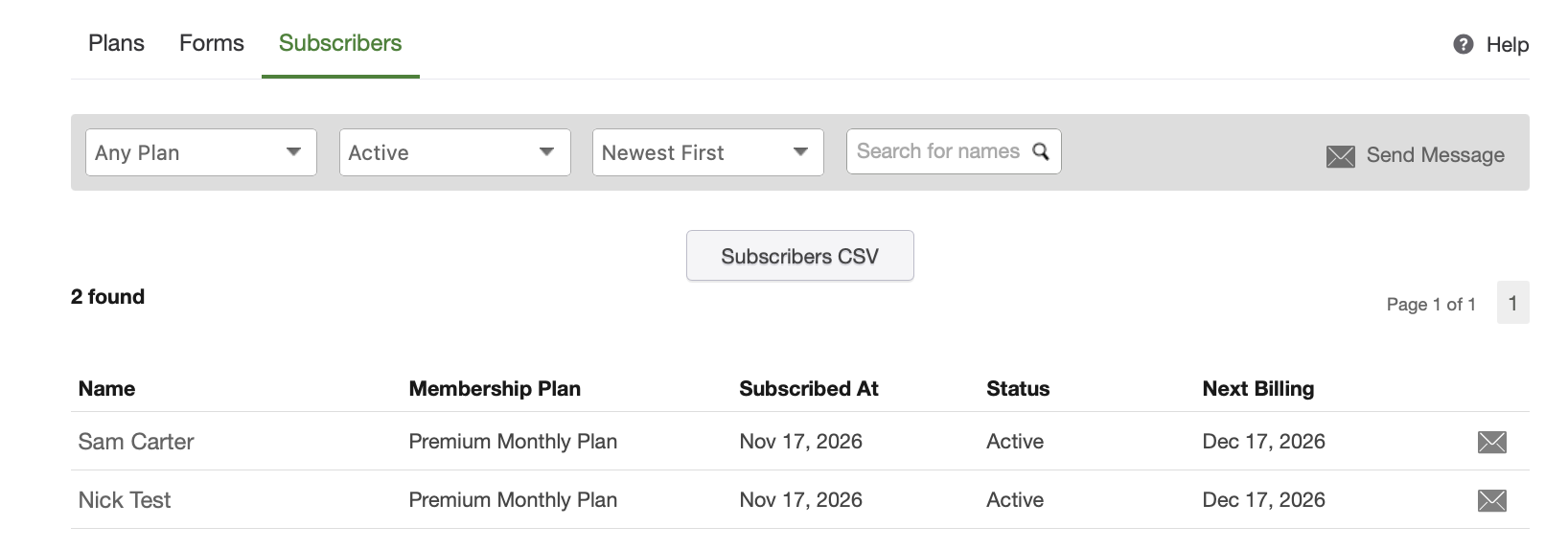
*The default view displays subscribers with "Active" status for "All Plans".
How to check subscription status
The following information is displayed for each subscriber:
- Subscriber's name (first and last name)
- Subscription plan
- Plan expiration date
- Status (subscription status)
- Plan start date
Status types
- Active: The membership is active.
- Pending: Credit card payment is being processed.
- Suspended: The existing credit card cannot be charged due to reasons such as card expiration. Waiting for the member to update their credit card information.
- Not renewing: The member has initiated cancellation, and cancellation is scheduled for the next billing date. (The membership remains active until the next billing date. On the next billing date, it will not renew and will automatically transition to "Canceled".)
- Canceled: The membership is inactive.
How to download the list of subscribers (CSV file)
Click the "Subscribers CSV" button to download the list of subscribers as a CSV file.
The file includes the subscriber's name (first and last name), display name, status, expiration date, and the data collected from the form.
*The CSV file does not include canceled subscribers.
Other features
Send a message to subscribers
You can send messages to all subscribers or to specific subscribers. For details, see "How can I send a message to subscription members?".
Remove a subscriber
Organizers can remove a specific subscriber from their subscription. For details, see "How can I cancel a subscriber's subscription?".