Notes on Check-in
- Managing multiple time slots via ticket categories within a single event
- Managing multiple time slots as individual single events
- Managing multiple sessions within a recurring event
For detailed instructions, please refer to How can I create an event with multiple shows or time slots?
Managing multiple time slots via ticket categories within a single event
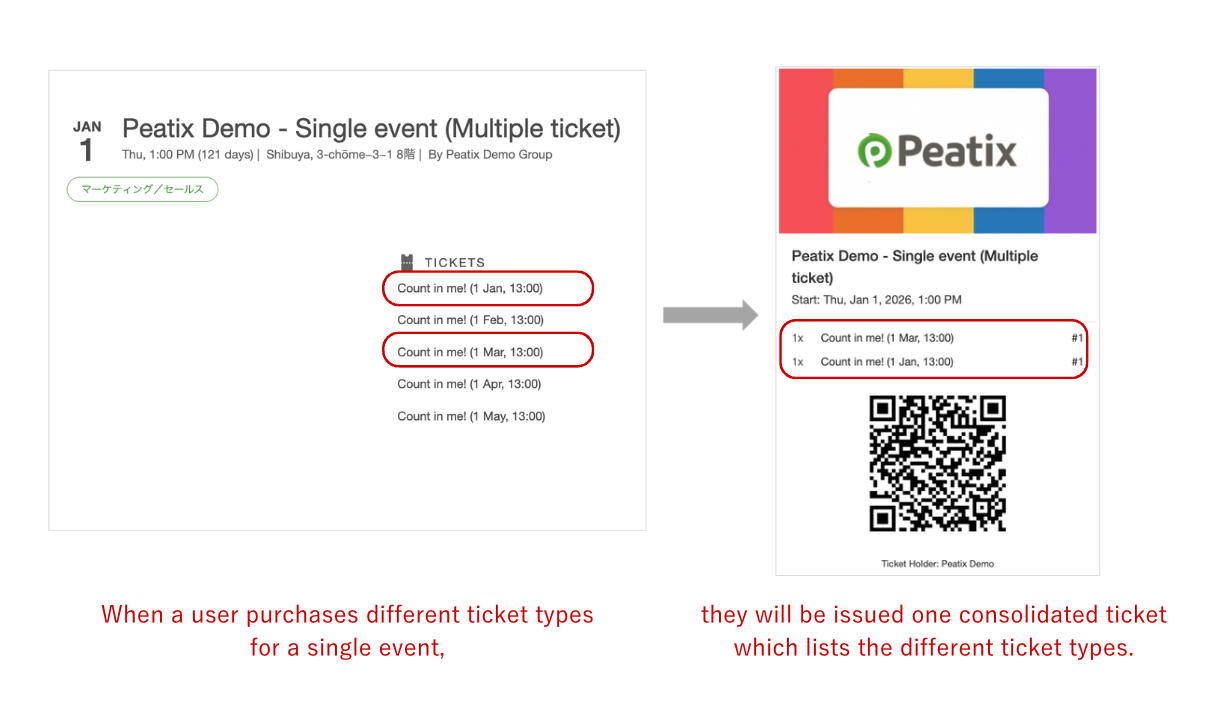
For events held multiple times, you can set tickets for different dates and times on a single event page.
However, if a user purchases tickets for multiple tile slots on a single event, those tickets will be combined into a single ticket.
When this combined ticket is checked in, all tickets for the selected dates or times will be checked in simultaneously. It is not possible to check in tickets for specific dates or times separately.
Only one QR code is issued for every single event. Once it is scanned, it cannot be used again for subsequent dates or times.
If You Want to Check In Tickets by Date or Time
If you need to manage check-ins for each specific date or time slot, we do not recommend using ticket categories within a single event. For instructions on how to create multiple events, please refer to How can I create an event with multiple shows or time slots?
Managing multiple time slots as individual single events
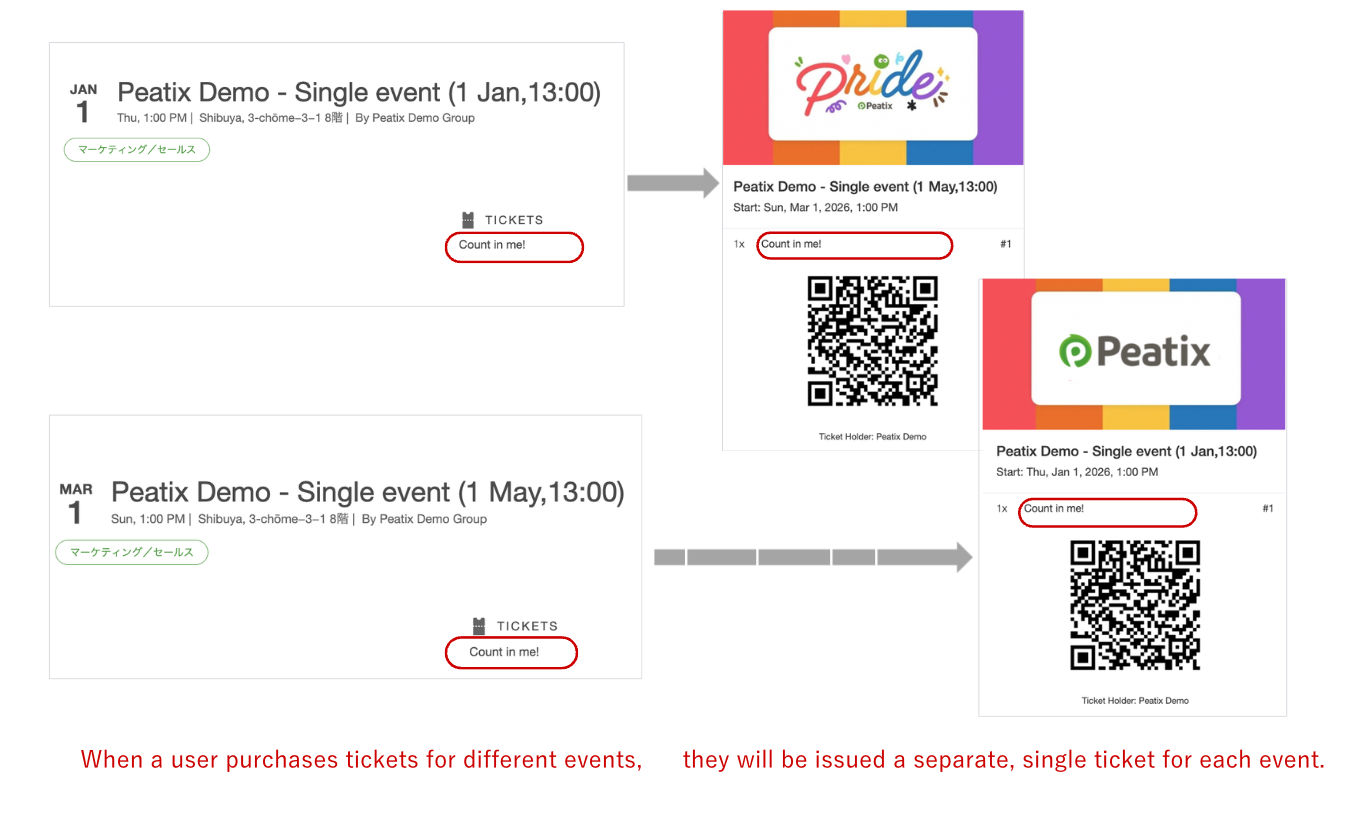
If you create multiple separate events for each date and time slot, the tickets will be issued separately for each event.
Since tickets are not combined, you can check in attendees for each specific time or date independently.
Managing multiple sessions within a recurring event
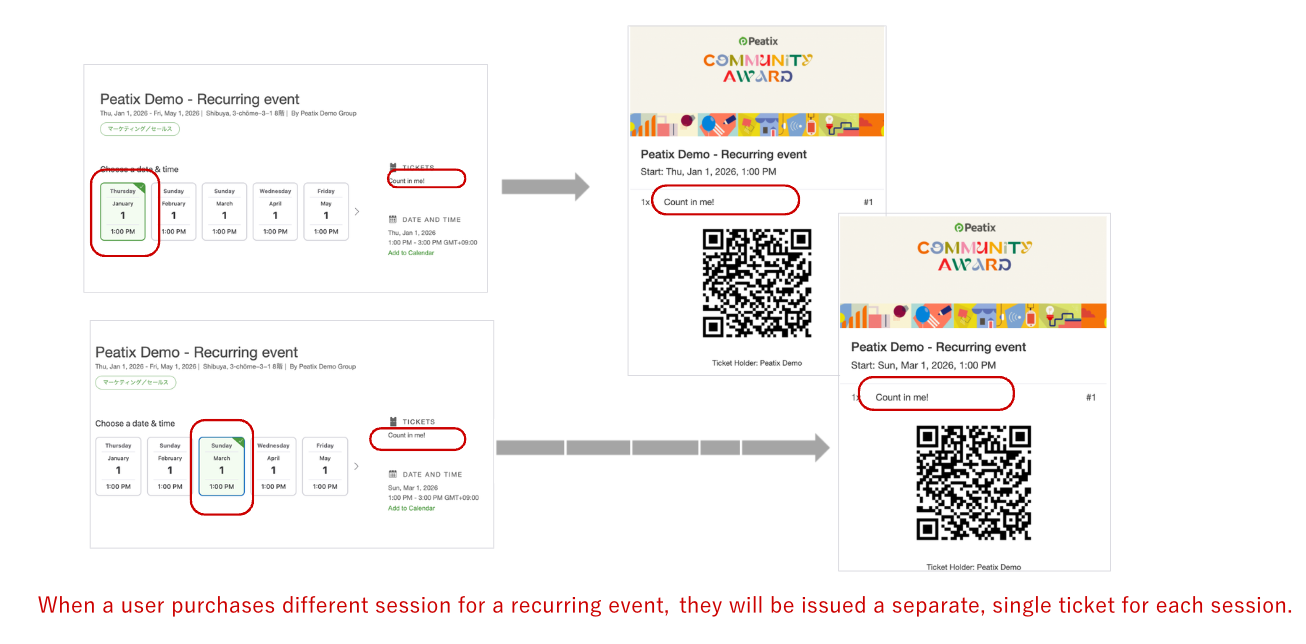
If you create a recurring event with sessions for multiple dates and times, the tickets will be issued separately for each session.
Since the tickets are not combined, you can check in attendees for each specific session independently. Even if an attendee purchased tickets for multiple sessions within the same recurring event, you can scan and check them in for each session separately.