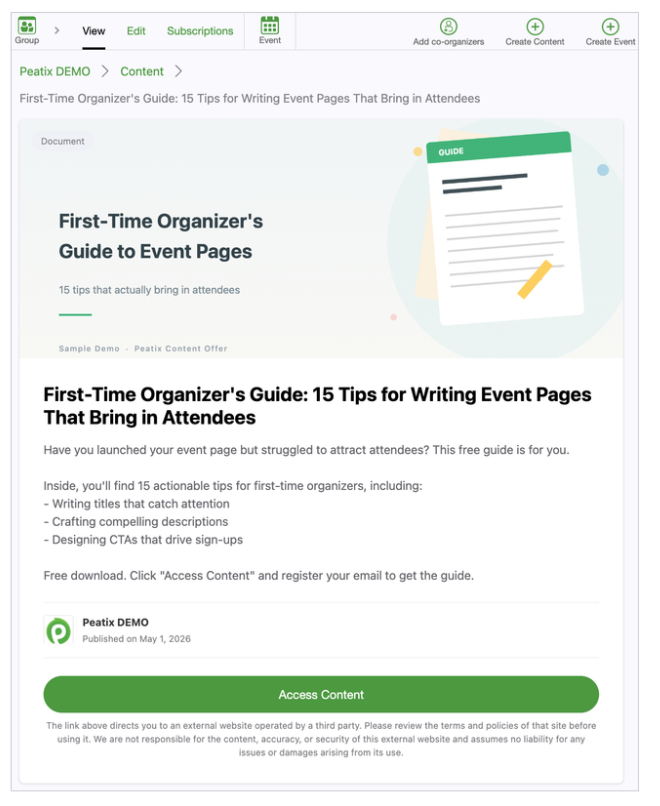
In the Content tab of the group page, the group's organizer and co-organizers can publish pages that introduce content (such as whitepapers, articles, videos, and audio) provided on external sites. By publishing a Content Offer Page, you can share your content broadly on Peatix in a format other than events.
The content itself is not hosted on Peatix. When viewers click the "Access Content" button, they are redirected to the external URL set by the organizer.
How to create
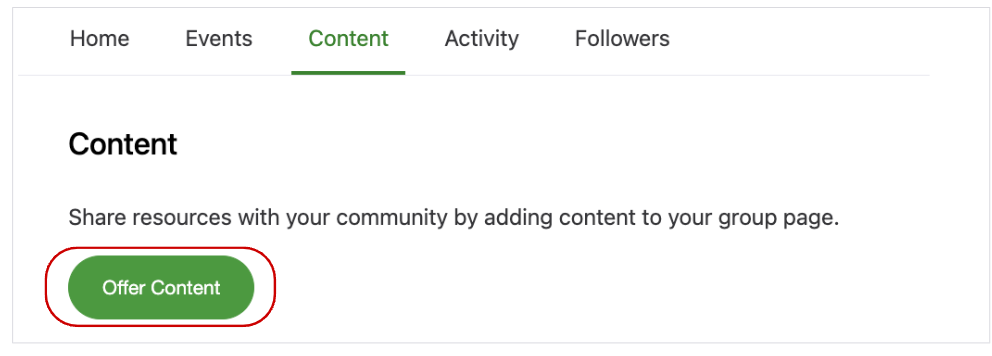
1. Open the "Content" tab and click "Offer Content".
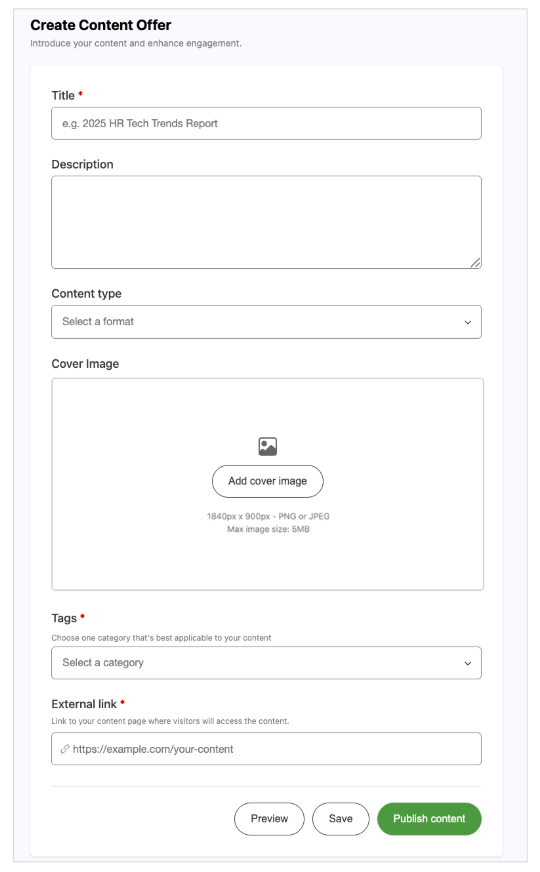
2. The Content Offer Page creation screen appears. Fill in the following items.
Title
Enter a title for your Content Offer Page.
* Please use a title that is easy to understand and accurately represents the content, to avoid misleading viewers.
Description
Enter the details you want to share on the Content Offer Page, such as a description of the content. Formatting is not supported; only plain text can be entered.
Content type
Select one option from "Document," "Video," "Audio," or "Other" to indicate the type of content you are introducing.
The selected type will be displayed as a label on the Content Offer Page's cover image.
Cover Image
Click "Add cover image" and select a file. After the selected image is displayed and you have adjusted its position, be sure to click "Save image" to confirm.
* The ideal size of the cover image is 1840 × 900px.
* Acceptable file formats are JPEG and PNG. PDF and TIF cannot be used.
Tags / Topic
Select a main category that represents the genre of the content you are introducing.
After selecting a main category, select one Topic. There are over 400 Topics available, so in addition to choosing from the suggested options, you can browse all Topics by clicking "View all topics."
External link
Enter the URL of the content you are introducing.
When viewers of the Content Offer Page click the "Access Content" button, they will be redirected to the external URL set here.
3. Once you have completed your input, click "Preview" to check how the Content Offer Page will appear. The preview is only available to the page editor.
4. Click "Publish content" to publish the Content Offer Page. When the page is published, a notification email is automatically sent to your group's followers, and a post is automatically created in your group's Activity feed.
*A new Content Offer Page publication notification email is sent to followers.
*The message posted to the Activity feed is generated automatically. If you would like to share a custom message or add context, please use the "Edit Post" feature.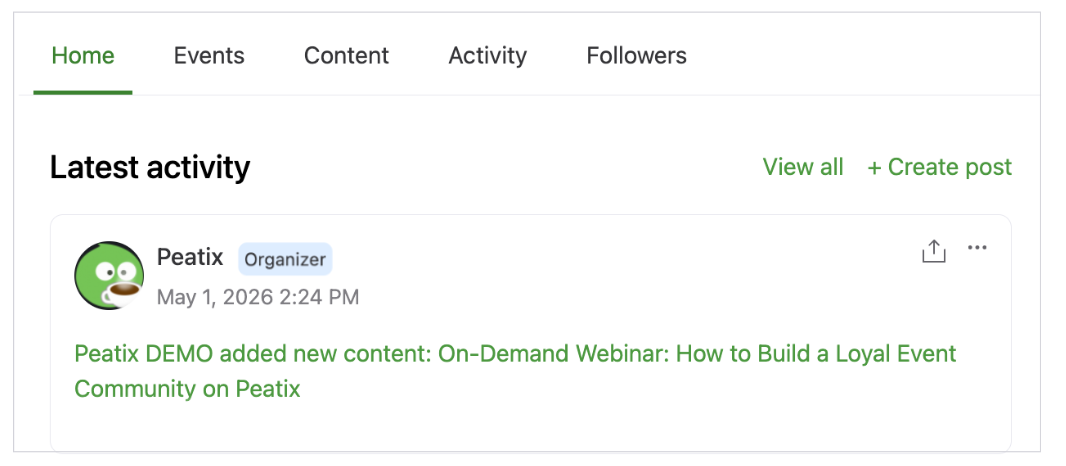
5. The four most recent Content Offer Pages are also displayed on the "Home" tab.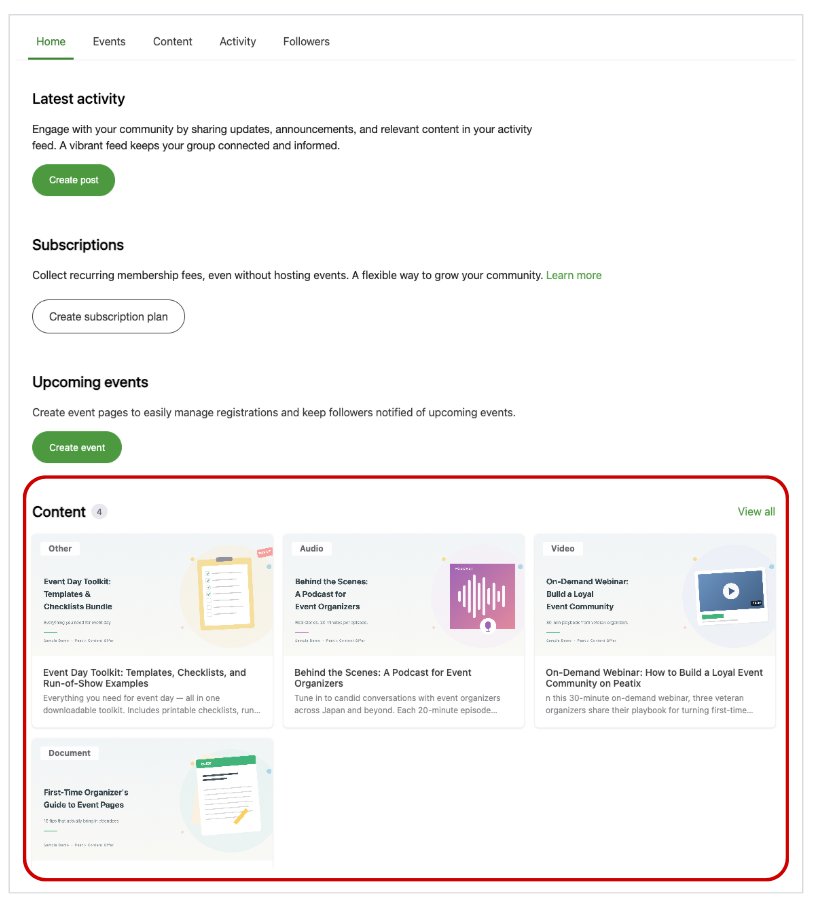
How to edit
1. Select the "Content" tab, and find the Content Offer Page you want to edit, and click "Edit" from the "..." menu at the top right corner.
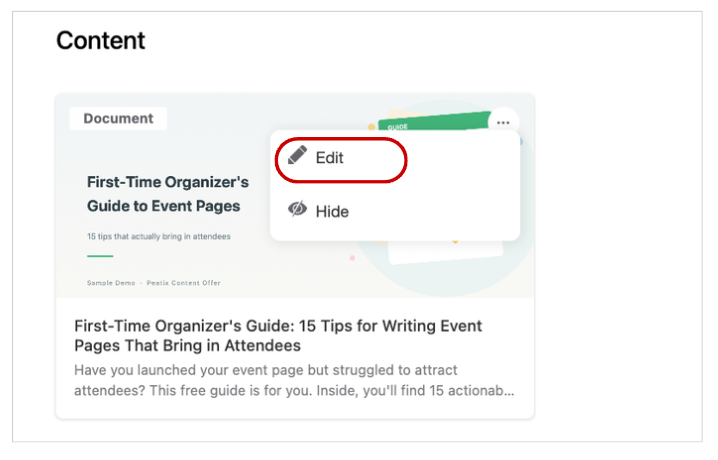
2. The edit screen appears. Modify the content, then click "Publish content" or "Save."
How to hide/republish
You can hide a published Content Offer Page so that users cannot view it, or republish a previously hidden page.
How to hide
1. Select the "Content" tab, and find the Content Offer Page you want to hide, and click "Hide" from the "..." menu at the top right corner.
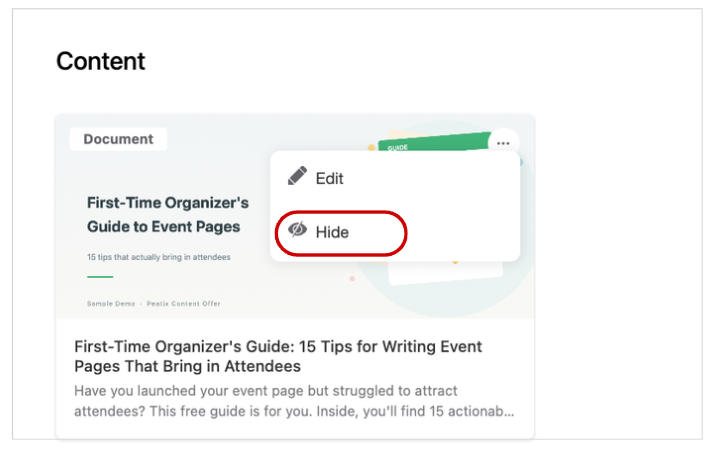
2. The Content Offer Page is hidden from your group page.
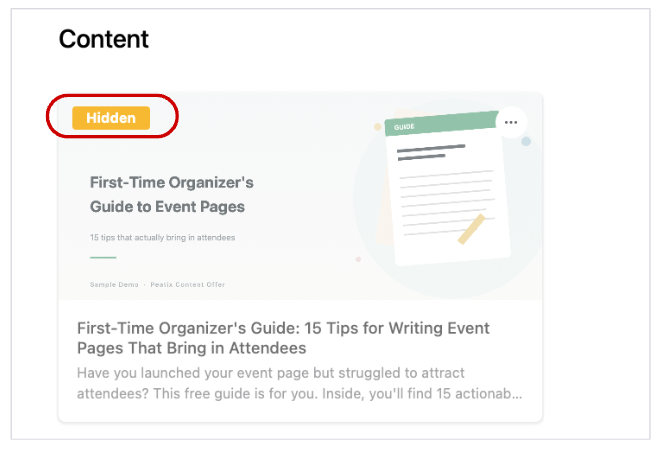
Hidden Content Offer Pages are visible only to the organizer and co-organizer, with a "Hidden" label.
How to republish
1. Select the "Content" tab, and find the hidden Content Offer Page, and click "Publish content" from the "..." menu at the top right corner.
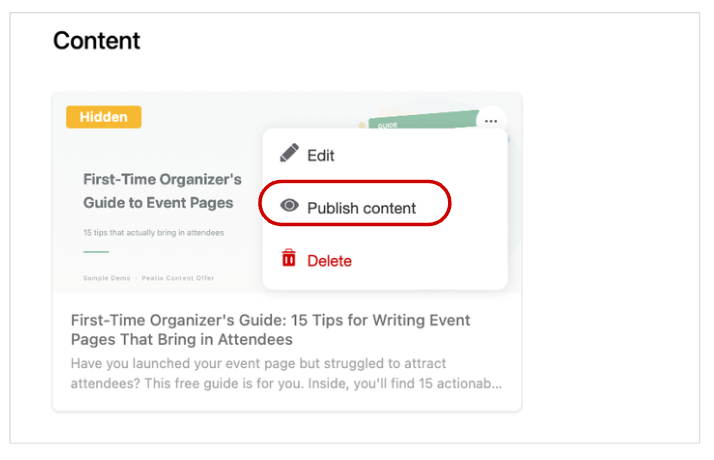
2. The Content Offer Page becomes visible on the group page again.
*A new Content Offer Page publication notification email is not sent to followers when republishing.
How to delete
Deletion is only available for Content Offer Pages in the "Hidden" state. To delete a published Content Offer Page, please hide it first.
1. Select the "Content" tab, and find the Content Offer Page you want to delete, and click "Delete" from the "..." menu at the top right corner.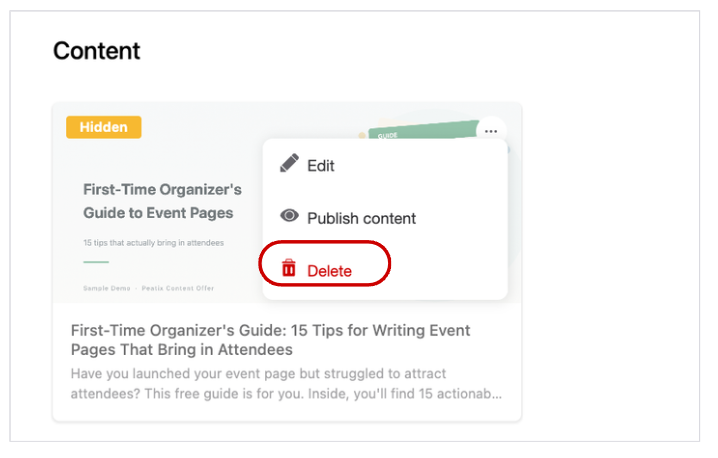
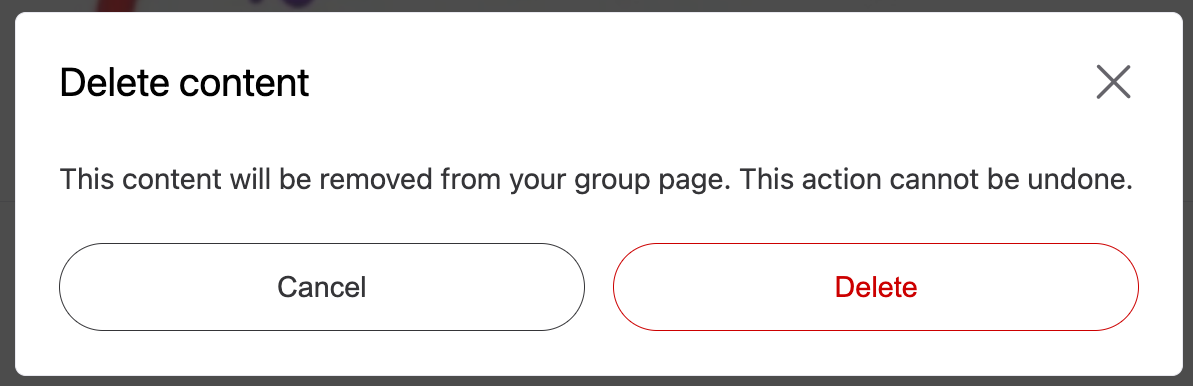
2. A confirmation message will appear. Click "Delete".
*Once a Content Offer Page is deleted, it is permanently removed from the Content tab and Home tab of your group page, and cannot be restored.